
Making Dataverse solution imports fast
This is Part 2 of a 3-part series on Dataverse solution deployments:
- Dataverse solution component types
- Making Dataverse solution imports fast (you are here)
- Package Deployer for solutions, data, and migrations
If you search “slow solution import” and land here, you are in the right place. This post covers the four import types Dataverse supports, how SmartDiff skips unchanged components, real benchmark numbers comparing each method, and a troubleshooting checklist. Part 1 explains what is inside a solution. Part 3 covers Package Deployer for teams that need orchestration and custom code.
TL;DR
- Use single-step upgrade (
StageAndUpgradeRequest/pac solution import --stage-and-upgrade) for routine managed deployments. It’s atomic, supports SmartDiff, and rolls back cleanly on failure. - Reserve two-step “Stage for upgrade” only when you need a migration window between old and new versions (e.g., data transforms via Package Deployer’s
RunSolutionUpgradeMigrationStep). More on that in Part 3. - SmartDiff accelerates Update and single-step Upgrade by skipping unchanged components, but it is disabled when
OverwriteUnmanagedCustomizationsistrue. If unmanaged drift is the problem, use Block unmanaged customizations instead of force-overwrite. - Keep updates small and segmented. For existing tables, include only the changed assets rather than the whole table. Avoid Publish all customizations and convert-to-managed for managed deployments.
- If imports feel slow, update your tooling first. Newer Dataverse API endpoints (
StageAndUpgrade,StageSolution) unlock SmartDiff and single-step upgrades. Older tools may still use the legacy two-step path. Then checkmsdyn_isoverwritecustomizationsinmsdyn_solutionhistoryto rule out SmartDiff being disabled.
Which import method should I use?
| Scenario | Method | PAC CLI |
|---|---|---|
| First deployment (new solution) | Install | pac solution import |
| Incremental update, no component removal needed | Update | pac solution import |
| Standard managed deployment with component cleanup | Single-step upgrade | pac solution import --stage-and-upgrade |
| Need migration window for data transforms | Stage for upgrade + Apply | --import-as-holding then pac solution upgrade |
| Multi-solution orchestration with custom hooks | Package Deployer | see Part 3 |
For most teams shipping managed solutions, single-step upgrade is the default choice. It deletes removed components, supports SmartDiff, and completes as one transaction. Fall back to the two-step path only when you need both the old and new versions installed concurrently.
Solution import types
Each deployment client calls the Dataverse SOAP web service (legacy) or OData API. The main behaviors map to these request types:
| Import Type | UI Label | History Operations | Import Context | SDK Message | SmartDiff | PAC CLI | Description |
|---|---|---|---|---|---|---|---|
| New | — | Import & New | ImportInstall | ImportSolutionRequest |
No | pac solution import |
First import of a solution not yet in the environment |
| Update | Update | Import & Update | ImportUpgrade | ImportSolutionRequest |
Yes | pac solution import |
In-place update preserving unmanaged customizations. Faster but doesn’t delete removed components |
| Holding + Apply | Stage for Upgrade | Import & Upgrade + Import & Uninstall | ImportHolding | ImportSolutionRequest (HoldingSolution=true) + DeleteAndPromoteRequest |
No | --import-as-holding + pac solution upgrade |
Two-step: holding import, then apply upgrade to remove old base + patches |
| Single Step Upgrade | Upgrade | Import & Single Step Upgrade | ImportUpgrade | StageAndUpgradeRequest |
Yes | --stage-and-upgrade |
Atomic upgrade in one transaction (2024+) |
SmartDiff applies to Update and Single Step Upgrade only when OverwriteUnmanagedCustomizations is set to false.
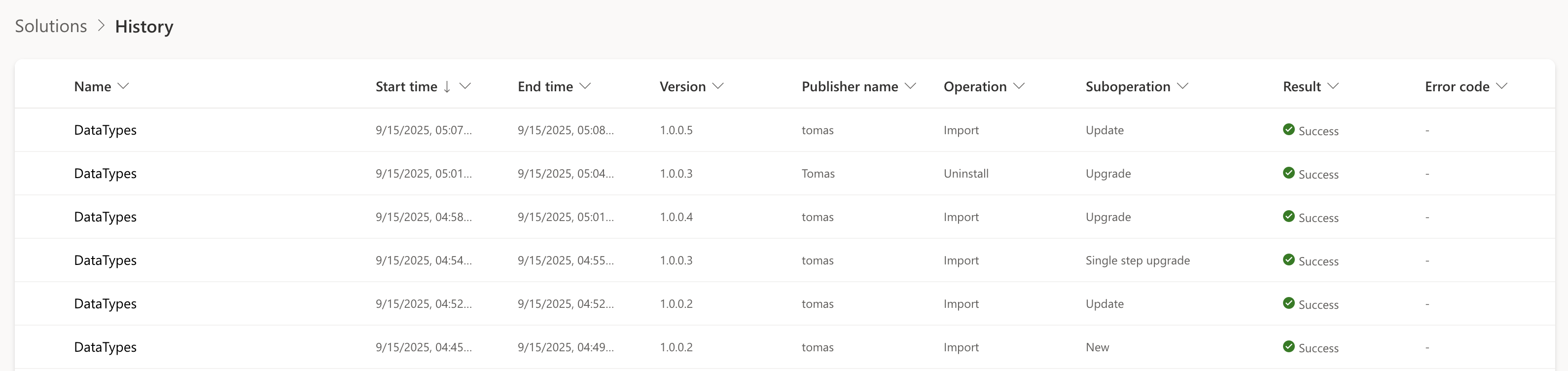
The screenshot below shows the Solution Import History page in Power Apps Maker. Use the Operation and Suboperation columns to identify the type of import. Refer to the table above for interpretation.
Terminology note
The word “stage” is heavily overloaded in this space:
| Term | Meaning | Don’t confuse with |
|---|---|---|
StageSolutionRequest |
Upload and validate a ZIP before import (no actual import) | “Stage for upgrade” |
| Stage for upgrade | Import as holding solution + apply upgrade later (two-step) | StageSolutionRequest |
StageAndUpgradeRequest |
Atomic single-step upgrade (2024+) | “Stage for upgrade” |
| Update | In-place update, keeps removed components | Upgrade |
| Upgrade (Maker UI) | Single-step upgrade since 2024 | The old “Stage for upgrade” |
SmartDiff
SmartDiff has been available since 2021 for the Update import type. In 2024, Microsoft extended it to single-step upgrades (StageAndUpgradeRequest). The SDK message itself shipped earlier (January 2021, org version 9.2.21013.00131), but SmartDiff did not apply to that path until the 2024 rollout.
How it works: When you import a solution, Dataverse stores a copy in blob storage. On the next import, it compares the incoming components against the stored version at the XML/metadata level. Components where nothing changed are skipped entirely. The platform generates a filtered import containing only the delta and processes that instead.
If you remember the now-deprecated solution patches (CloneAsPatch), SmartDiff achieves a similar goal, reducing the import to only changed components, but does so automatically without requiring you to manually create and manage patch solutions.
In practice, this can make updates and single-step upgrades dramatically faster when most components have not changed.
For classic platform components (entities, attributes, relationships, forms, views), SmartDiff is enabled individually per component type. The newer SCF components, those with type codes above 1000 registered via solutioncomponentdefinition, were designed with diff support built into the framework itself. SmartDiff coverage extends to them automatically as new SCF types are introduced.
Important: Setting
OverwriteUnmanagedCustomizationstotruedisables SmartDiff. The check happens before any comparison. If the flag is true, Dataverse skips the optimization and processes all components unconditionally. Force-overwrite significantly slows managed solution imports. If the real problem is unmanaged drift in nondevelopment environments, use Block unmanaged customizations instead of leaving force-overwrite enabled.
Two-step upgrades and when they are still useful
Important: The two-step “Stage for upgrade” path is the slowest of all upgrade methods. It does not benefit from SmartDiff. The Maker UI uses synchronous
DeleteAndPromotefor the apply step, a blocking HTTP call with no progress feedback, thoughDeleteAndPromoteAsyncis also available via the Web API for automation. Only use this path when you genuinely need the migration window, not for routine deployments.
How it works
The Maker UI “Stage for upgrade” button calls ImportSolutionAsync with HoldingSolution: true (not StageAndUpgradeAsync). This imports a temporary {SolutionName}_Upgrade holding solution injected above the base solution layer and below any solution sitting above it. Because importcontext = ImportHolding, SmartDiff does not apply. All components are processed unconditionally.
Applying the upgrade fires DeleteAndPromote, which removes the old base layer and any pending patches, then renames the _Upgrade solution by stripping the suffix. Every component is touched twice across the two phases with no optimization.
Why single-step is different
StageAndUpgradeRequest was designed differently. Instead of creating a separate layer and promoting it, it works like the Update path, modifying the existing solution layer in place and additionally deleting components no longer present in the new version. Because it shares the in-place update architecture, SmartDiff applies the same way it does to Update imports. No _Upgrade solution is created. If the operation fails, the transaction rolls back cleanly.
When to use two-step anyway
The two-step flow is the right choice when you need a controlled migration window. “Stage for upgrade” imports the new version but defers deletion of the previous version. Select this option when you need both old and new versions installed concurrently to run data migrations before completing the upgrade.
For example, you can stage the new version, run migrations or transform data (you can use Package Deployer’s RunSolutionUpgradeMigrationStep), then apply the upgrade. Part 3 covers this in detail.
Note: Package Deployer automatically detects whether your package has a meaningful implementation of
RunSolutionUpgradeMigrationStep. If custom migration code is detected, PD switches to the two-step holding path and calls your migration code after the holding import completes but beforeDeleteAndPromotefires. You can confirm this from PD’s log output:User Provided Upgrade code is not detected in package. if allowed, Package Deployer will use one step upgrade pattern for this package.
Dependency cleanup
The two-step path also helps with dependency cleanup across solution layers. When removing a component referenced by higher layers, you need to control the upgrade order so the upper layer drops the dependency first. Part 3 covers the practical details.
Benchmark
The following numbers are from a real managed solution with 79 components, measured on a single environment. Each version contained one changed component (a single column label edit) against the prior version, so the SmartDiff delta was consistent across runs.
| Version | Method | API action | msdyn_suboperation |
Components processed | Server time | SmartDiff | OverwriteUnmanagedCustomizations |
|---|---|---|---|---|---|---|---|
| 1.0.0.1 | PP Pipelines (install) | DeployPackageAsync (opaque) |
1 = Install | 79 / 79 | 404 s | ❌ | false |
| 1.0.0.2 | PP Pipelines (upgrade) | DeployPackageAsync (opaque) |
5 = Upgrade | 28 / 79 | 120 s | ✅ | false |
| 1.0.0.3 | Maker UI - Upgrade | StageAndUpgradeAsync |
5 = Upgrade | 28 / 79 | 82 s | ✅ | false |
| 1.0.0.4 | Direct API - Upgrade | StageAndUpgradeAsync |
5 = Upgrade | 28 / 79 | 95 s | ✅ | false |
| 1.0.0.5 | Maker UI - Update | ImportSolutionAsync |
3 = Update | 1 / 79 (7 entities) | 15 s | ✅ | false |
| 1.0.0.6 | Maker UI - Stage for upgrade + Apply | ImportSolutionAsync (HoldingSolution=true) + DeleteAndPromote (sync) |
2 = HoldingImport | 79 / 79 | 433 s + 193 s = 626 s | ❌ | false |
| 1.0.0.7 | Direct API - Upgrade | StageAndUpgradeAsync |
5 = Upgrade | 79 / 79 | 414 s | ❌ (disabled) | true |
| 1.0.0.8 | Package Deployer - Upgrade | StageAndUpgradeAsync |
5 = Upgrade | 28 / 79 | 93 s | ✅ | false |
Reading the results
The msdyn_suboperation values map to: 1 = Install, 2 = HoldingImport / DeleteAndPromote, 3 = Update, 5 = Upgrade (atomic). Both Update (3) and Upgrade (5) produce importcontext = ImportUpgrade and benefit from SmartDiff. Install (1) and HoldingImport (2) do not.
SmartDiff impact (v1.0.0.7, control experiment): Same solution, same change size, same API action as v1.0.0.4. The only difference is OverwriteUnmanagedCustomizations=true. SmartDiff was completely absent from the importjob XML and all 79 components were processed: 414 s vs 95 s. The flag forces unconditional processing of every component.
Two-step penalty (v1.0.0.6): The holding import processed all 79 components with no SmartDiff (433 s), then DeleteAndPromote touched every component again (193 s). 626 s total, the slowest path. DeleteAndPromote was a synchronous blocking HTTP call with no progress feedback in the Maker UI. The API also exposes DeleteAndPromoteAsync for automation scenarios.
Package Deployer (v1.0.0.8): PD’s one-step upgrade path produced results identical to a direct StageAndUpgradeAsync call. 93 s, SmartDiff active, 28 of 79 components processed. PD ends up calling the same StageAndUpgrade API the direct path does, so there is nothing extra happening at the Dataverse import layer. In this benchmark, Package Deployer showed no measurable overhead.
Note:
msdyn_solutionhistoryalone cannot tell you which imports came from Package Deployer vs direct API calls.msdyn_packagename,msdyn_packageversion, andmsdyn_correlationidare not populated by PD. PD writes to a separatepackagehistoryplatform entity. See Part 3 for how to correlate them.
Note: Power Platform Pipelines abstracts the import entirely. The Maker Portal calls
DeployPackageAsync { StageRunId }and the actual import action,OverwriteUnmanagedCustomizations,PublishWorkflows, and all other parameters are decided server-side by the Pipelines service.
Troubleshooting import performance
XrmToolBox Solution History tool
The most convenient way to troubleshoot slow imports. make.powerapps.com doesn’t expose per-component details, and parsing raw XML by hand is painful. The Solution History tool for XrmToolBox shows import history, SmartDiff status, component-level details, errors and warnings, and per-component processing timestamps parsed from importjob.
Solution history table
msdyn_solutionhistory records every import operation with timing, status, operation/suboperation, and whether customizations were overwritten.
The most useful fields for troubleshooting are msdyn_totaltime, msdyn_operation, msdyn_suboperation, and msdyn_isoverwritecustomizations. Note that msdyn_isoverwritecustomizations is a proper OData column. It is the reliable place to check whether a specific import ran with force-overwrite. The importjob XML does not include this parameter.
Import job detail
The importjob entity has a data column containing an XML blob with per-component details including timing. It also exposes importcontext (ImportInstall, ImportUpgrade, or ImportHolding).
If SmartDiff was used, the XML contains a SmartDiffApplied element. That is the most direct place to confirm whether the optimization kicked in.
Troubleshooting checklist
If imports are still slow after switching to single-step upgrade, check these in order:
- Is
msdyn_isoverwritecustomizationsset totrueinmsdyn_solutionhistory? This is the #1 cause. It disables SmartDiff entirely. - Are you accidentally using the holding import path? Check
msdyn_suboperation. Value 2 means HoldingImport. - Is SmartDiff actually applying? Look for
SmartDiffAppliedin theimportjobXML. - Did someone recently enable a new language in the environment? After a language rollout, the first import of every solution is slower. Expected, one-off.
Tooling
Many organizations still run outdated tooling that doesn’t support modern import types.
- PAC CLI: Keep it updated. Older versions don’t support
--stage-and-upgrade. Key flag defaults:--activate-pluginscontrolsPublishWorkflows. Defaults tofalse. Pass it explicitly if your solution has cloud flows or SDK steps.--force-overwrite(OverwriteUnmanagedCustomizations) defaults tofalse. SmartDiff is on by default.AsyncRibbonProcessingcannot be set via PAC CLI. No flag exists. Call the API directly if needed.--skip-lower-versionskips import if the same or higher version is already installed.
- Package Deployer PowerShell (
Microsoft.PowerApps.PackageDeployment/Microsoft.PowerApps.PackageDeployment.PowerShell): keep up to date. Older releases predate the single-step upgrade pattern. If you hit trouble, upgrade the module before investigating further. Version 3.3.0.1039+ (Package Deployer 4.0.0.183+). - Azure DevOps Tasks: If you use third-party tasks such as
dyn365-ce-vsts-tasks, check which PowerShell and tooling versions they invoke.
Solution versioning and version-skip optimization
Power Platform Maker UI presents “Update,” “Upgrade,” and “Stage for Upgrade” options when the system already contains the same managed solution with a lower version number. If you import a solution with the same version number that already exists, the “Update” type is used. Lower versions can’t be uploaded through the UI (as of 2025), but it was recently allowed through CLI/API to enable rollback scenarios in Power Platform pipelines.
Skipping unchanged solutions
For projects with components segmented into multiple solutions, import speed can be improved by incrementing solution versions only when changes are detected in the solution project folder. Tools like GitVersion can determine the version at build time and overwrite the value in solution.xml. Solutions with matching versions can then be skipped entirely. Their ZIP files never even get uploaded. Smaller solution boundaries and smaller table payloads also reduce unnecessary layers before the import starts.
Package Deployer defaults to skipping same or lower versions (see version-skip logic in Part 3). For PAC CLI, use the --skip-lower-version flag.
Upload and validation via the staging endpoint
Solutions can be uploaded and validated before import using StageSolutionRequest. This uploads and validates the solution ZIP, returning validation results and an upload ID (StageSolutionResults.StageSolutionUploadId). The file is stored in the StageSolutionUpload entity.
You can then execute any of:
- Update via
ImportSolutionAsyncRequest - Two-step upgrade via
ImportSolutionAsyncRequestwithHoldingSolution=truefollowed byDeleteAndPromoteRequest - Single-step upgrade via
StageAndUpgradeAsyncRequest
Pass the StageSolutionUploadId via SolutionParameters.StageSolutionUploadId. Only Async message versions support this parameter.
This decouples validation from deployment. Both the Maker UI Update and Upgrade flows call StageSolution first. The file is uploaded, the component manifest (IsPresentInOrg per component) is returned, the UI renders a preview dialog, and only after confirmation does the import call fire with the upload ID.
PAC CLI 2.6.3 always calls StageSolution first, even for a plain pac solution import. The CLI uploads the full ZIP bytes, receives the upload ID, and passes it to the subsequent import request. The staging response is also used to resolve connection references and environment variables before the import fires.
At the API level, Dataverse exposes both ImportSolutionAsync (with an optional HoldingSolution parameter) and a dedicated StageAndUpgradeAsync action. Two separate API paths for upgrades.
Important:
StageSolutionRequestis a validation-only endpoint. It does not import any solution and does not create a holding solution. It cannot create the two-solution state required for upgrade-time migrations. For migrations, useImportSolutionAsyncRequestwithHoldingSolution=trueinstead.
Import speed evolution
Dynamics CRM 2011 had no supported way of deleting components during upgrade. Developers used a “holding solution” trick: export, unzip, rename the solution unique name, import, delete the old one, re-import with the correct name, then remove the temporary solution.
Dynamics CRM 2016 introduced “Stage for upgrade” and “Apply solution upgrade.” This imports a temporary holding solution (with _Upgrade suffix) above the base solution layer and below other layers. Applying the upgrade fires DeleteAndPromoteRequest to remove the old version and any components not present in the new package. This process is very slow as it manipulates all components multiple times.
v9.0 added an “Upgrade” option in the UI that combined both steps in one click. Still a holding import followed by promote under the hood, but initiated as a single user action. If an error occurred during promote, it left the _Upgrade solution behind.
2021: Microsoft introduced SmartDiff for the Update import type (cloud SKU). The platform stores each imported solution in blob storage and compares incoming components at the XML/metadata level on subsequent imports. Only changed components are processed when SmartDiff is active.
Jan 2021 (org ≥ 9.2.21013.00131): The StageAndUpgradeRequest SDK message shipped as a single-step atomic upgrade path. At first it was plumbing only. SmartDiff did not yet apply to it.
Late 2023 / early 2024: PAC CLI exposed the --stage-and-upgrade switch (from version 1.28 onward), and Power Platform Build Tools / GitHub Actions added the flag. This made the one-step path practical for CI/CD.
2024: Microsoft began rolling out SmartDiff on the StageAndUpgrade path in waves. Before this, upgrades touched every component multiple times (holding import + DeleteAndPromote). After this, the one-step upgrade can skip unchanged components. Shan McArthur (Principal PM, Dataverse ALM) flagged an expected ~45 % improvement over the classic upgrade pattern.
How does native Git integration relate to this?
A common question is whether native Git integration makes the solution import pipeline irrelevant. It doesn’t, but the comparison is worth understanding.
Dataverse rolled out native Git integration for developer environments. It connects an environment to an Azure DevOps repository and syncs component metadata back and forth. Currently Azure DevOps only, GitHub support will come soon.
The important thing for this post is that Git pull doesn’t go through the normal solution import pipeline. It’s a completely separate code path:
- The environment tracks every component with a path and content hash stored in internal Dataverse entities.
- On pull, it compares environment hashes with hashes in the Git branch.
- Only components that differ are fetched from Azure DevOps.
- Changed components are applied individually, not through the solution import path.
You can see the feature’s footprint in live metadata: sourcecontrolconfiguration, sourcecontrolbranchconfiguration, sourcecontrolcomponent, sourcecontrolcomponentpayload, and stagedsourcecontrolcomponent.
It’s a change-set-first path, while ImportSolution and StageAndUpgrade are package-first paths.
For the inner dev loop this is a big productivity improvement. Save on one environment, commit to Git, pull to another dev environment. Only changed components move across.
SmartDiff and native Git pull are not the same thing. SmartDiff optimizes a full solution upgrade by skipping unchanged components inside a ZIP. Native Git pull never builds the full ZIP in the first place. They solve related problems at different layers.
Next
If you’re deploying a single solution, the default above is all you need. For multi-solution projects, data migrations, or custom code hooks during deployment, Part 3: Package Deployer for solutions, data, and migrations covers the orchestration layer that sits on top of the import API.
For avoiding servicing-window conflicts: Submit your Package Deployer package to the Catalog so the platform queues your deployment alongside its own updates instead of competing with them.
To submit comments, go to GitHub Discussions.